
Diagram Macros for Confluence · Guide
Mermaid diagrams in Confluence PDF and Word exports
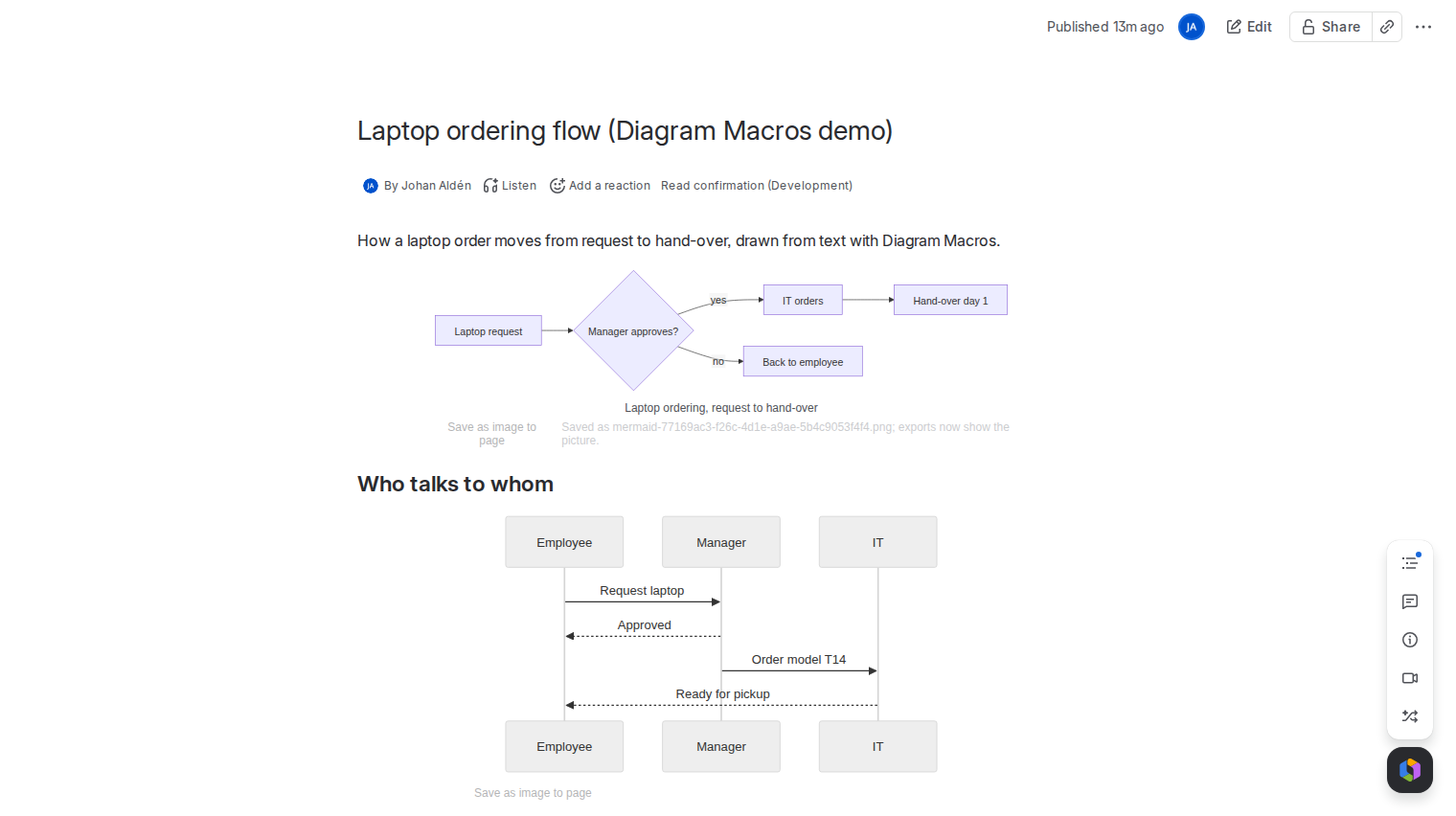
Confluence builds PDF and Word exports without running the page in a browser. A Mermaid diagram is drawn in the browser, so the export has nothing to show unless a picture of the diagram is stored on the page. Diagram Macros saves that picture with one click, and from then on exports show it.
What happens without a saved picture
With Diagram Macros, an export of a page whose diagram has no saved picture shows the Mermaid text in a code block, with a note that explains how to get the picture. Nothing is lost, but readers of the PDF see text, not a drawing.
Step by step
- Publish the page with the Mermaid diagram on it.
- Save the picture. Hover over the diagram on the published page and click Save as image to page under it. You need edit permission on the page.
- Check the message. The app draws a PNG in your browser and stores it as an attachment on the page, named after the macro. The line under the diagram then says that exports show the picture.
- Export the page to PDF or Word as usual. The picture appears where the diagram is, with its caption.
- After a change to the diagram, the line under it says the saved image is out of date. Click Save image again so the export matches.
Good to know
- The Mermaid text stays the source. The picture is only for exports and page history.
- The picture is drawn with a light theme so it prints well, even when you work in dark mode.
- Very large diagrams are scaled down to fit. If one is still too big, the app says so and suggests splitting it into two macros.
- Markdown macros need no picture. Exports turn them into normal Confluence content.
Price
Free for up to 10 users. From 11 users it costs 0.30 USD per user per month, billed by Atlassian. The Pricing tab on the listing shows the exact figure for your user tier, and you can try the app free for 30 days before you pay.
Get Diagram Macros for Confluence on the Atlassian Marketplace